Kali Linux ships an official package called mcp-kali-server that exposes the Kali toolset to AI clients over the Model Context Protocol. Combined with Claude Code, this means you can ask Claude to run nmap, nikto, or any other Kali tool and get structured results back in your terminal - no manual SSH, no copy-pasting output. This guide covers the full setup from scratch, with Kali running in VirtualBox on a Linux host.
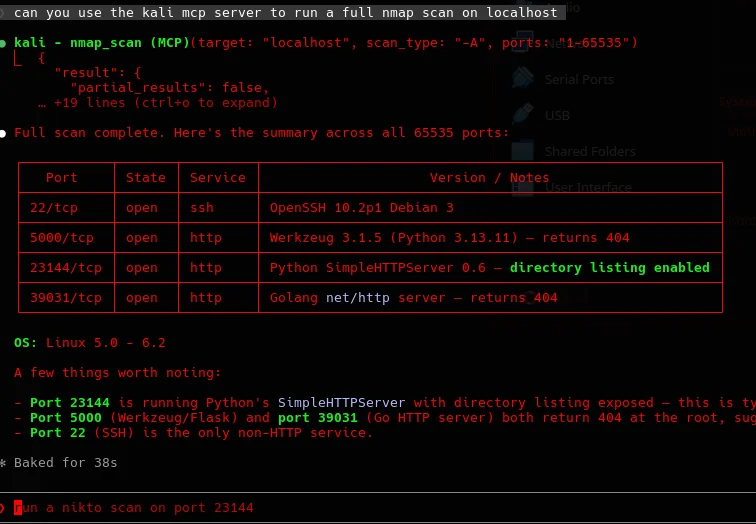
How It Works
The mcp-kali-server package installs two components on the Kali VM:
- kali-server-mcp - a Flask API server that executes Kali tools on the machine. Runs on port 5000 by default, bound to localhost only. Must be run as root.
- mcp-server - an MCP bridge that the client communicates with over stdio. Runs as a regular user.
Claude Code connects to the MCP server over SSH. The full call chain looks like this:
Claude Code <-> SSH <-> mcp-server on Kali VM <-> kali-server-mcp API on localhost:5000The API server never needs to be exposed beyond localhost. All communication with the host flows through SSH, which you control with key restrictions.
Step 1: Install mcp-kali-server on the Kali VM
Boot your Kali VM and install the package from the official repos:
sudo apt install mcp-kali-serverThen start the API server. Note that kali-server-mcp must be run as root:
sudo kali-server-mcp --port 5000You should see Flask output confirming it is serving on 127.0.0.1:5000. It will print a warning about running as a development server - this is fine for local use. Leave this running in a terminal or set it up as a service (covered in the gotchas section below).
Step 2: Enable SSH on the Kali VM
SSH is not enabled by default on Kali. Start it and set it to run on boot:
sudo systemctl enable --now sshVerify it is running:
sudo systemctl status sshStep 3: Configure VirtualBox Port Forwarding
If Kali is running under VirtualBox NAT (the default), the VM's internal IP (10.0.2.15) is not reachable directly from the host. You need to forward a host port to the VM's SSH port.
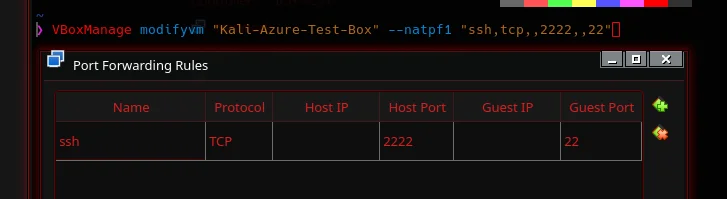
First, get the exact name of your VM:
VBoxManage list vmsIf the VM is currently running, add the forwarding rule with controlvm:
VBoxManage controlvm "YourVMName" natpf1 add "ssh,tcp,,2222,,22"If the VM is powered off, use modifyvm instead:
VBoxManage modifyvm "YourVMName" --natpf1 "ssh,tcp,,2222,,22"This forwards port 2222 on your host to port 22 inside the VM. Verify the rule was applied:
VBoxManage showvminfo "YourVMName" | grep -i natYou can also configure this in the VirtualBox GUI under Settings > Network > Advanced > Port Forwarding.
Step 4: Generate a Dedicated SSH Key
Do not reuse an existing key for this connection. Generate one specifically for the MCP bridge:
ssh-keygen -t ed25519 -C "kali-mcp" -f ~/.ssh/kali_mcpLeave the passphrase empty. Claude Code needs to connect non-interactively and cannot handle passphrase prompts.
Copy the public key to the Kali VM:
ssh-copy-id -p 2222 -i ~/.ssh/kali_mcp.pub [email protected]Test that passwordless login works:
ssh -p 2222 -i ~/.ssh/kali_mcp [email protected] "whoami"This should return kali with no password prompt. If it prompts for a password, check that ~/.ssh on the Kali VM has permissions 700 and ~/.ssh/authorized_keys has permissions 600.
Step 5: Lock Down the SSH Key
This step is recommended but optional. On the Kali VM, edit ~/.ssh/authorized_keys and prefix the key entry with a command restriction so this key can only be used to invoke mcp-server:
command="mcp-server --server http://localhost:5000",no-port-forwarding,no-X11-forwarding,no-agent-forwarding ssh-ed25519 AAAA...Replace the ssh-ed25519 AAAA... part with your actual public key. With this in place, even if kali_mcp were leaked, it could not be used for anything beyond starting the MCP bridge. It cannot open a shell, forward ports, or do anything else.
Step 6: Add the MCP Server to Claude Code
Back on your host, register the MCP server with Claude Code:
claude mcp add kali -- ssh -p 2222 -t -i ~/.ssh/kali_mcp [email protected] mcp-server --server http://localhost:5000This tells Claude Code that any time it needs to use the kali MCP server, it should connect over SSH on port 2222 using your dedicated key and start mcp-server on the remote end. The -t flag allocates a pseudo-terminal, which is required for the MCP bridge to initialise correctly.
Step 7: Test the Connection
Start a Claude Code session and verify the integration is working. Ask Claude to confirm it can reach the MCP server:
> Use the kali MCP server to run whoami on the Kali machineIf that works, try a real tool:
> Run nmap -sV localhost on the Kali serverA successful response will show Claude invoking the tool and returning structured output from the Kali machine. From here you can use any Kali tool that kali-server-mcp exposes - ask Claude what's available if you're not sure what's in scope.
Gotchas
Things that bit me during setup, in case they save you time:
- kali-server-mcp: command not found - You're running it as a regular user. It must be run as root:
sudo kali-server-mcp --port 5000. - SSH connection refused - The SSH service is not running on Kali by default. Run
sudo systemctl enable --now sshon the VM. - Port forwarding not working - If the VM is already running, you must use
controlvm, notmodifyvm. The rule only takes effect on the running VM. - Password prompt on every connection - Key not copied correctly, or wrong permissions on
~/.ssh(700) orauthorized_keys(600) on the Kali VM. - MCP not initialising on Claude Desktop - The popular AUR Claude Desktop packages are site wrappers around claude.ai and do not support MCP. Use Claude Code instead.
- kali-server-mcp stops after reboot - The API server isn't configured as a service by default. Either start it manually before each session or set up a systemd unit for it.
Security Notes
kali-server-mcp gives Claude full terminal access on the Kali VM. Treat it accordingly:
- Keep port 5000 bound to localhost only. Never expose it on the network interface.
- The SSH key restriction in
authorized_keyslimits blast radius if the key is ever leaked. - The VM is your isolation boundary. This setup is for a local lab VM - do not run
kali-server-mcpon a machine you care about or that has network access beyond your lab. - The Flask development server warning is expected and harmless for local lab use.
> End of output.